
Last updated: October 17, 2026.
You can recreate the viral Tesla Roadster flying-car style with a short image-to-video workflow, then finish the sequence in CapCut or another editor. The strongest version uses several short shots rather than asking one AI model to generate the entire 10- to 15-second story in a single pass.
Quick workflow: create a vertical reference image of a futuristic white Roadster-style sports car in traffic, generate four short clips – traffic setup, interior reaction, exterior lift-off and interior landing reaction – then join them in 9:16 with compressed-air sound effects, camera shake and a clear AI-generated disclosure.
What makes the viral Tesla Roadster video work?
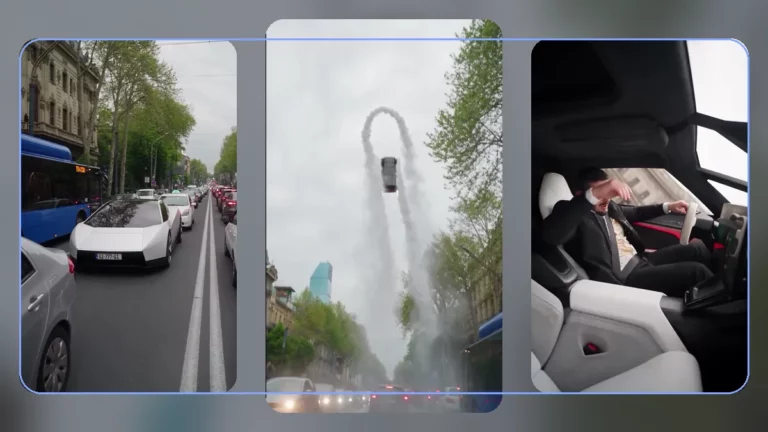
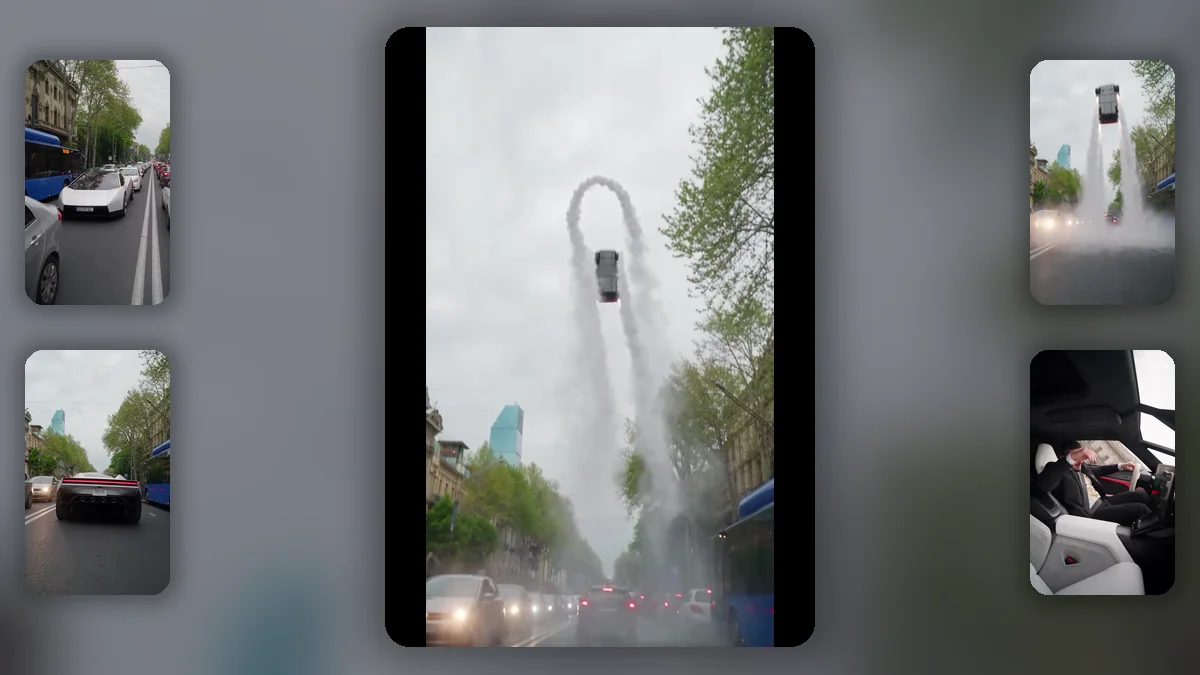
The uploaded reference clip is about 13 seconds long and follows a simple social-video structure:
- Traffic setup: the white sports car is stuck between normal vehicles.
- Interior setup: a sharply dressed passenger sits calmly with a coffee.
- Launch: the car fires downward jets and rises above traffic.
- Aerial move: it performs an exaggerated loop or arc.
- Reaction payoff: the passenger is thrown around and the drink spills.
This works because the first shots look ordinary, then the impossible event happens quickly. The reaction shot gives the video a comic ending and makes it loopable.
What tools can create this type of video?
You can use any capable image-to-video generator that supports reference images, camera controls and short vertical clips. Common options include Kling, Runway, Hailuo, Veo, Pika and Sora. Availability, limits and quality vary by plan and region.
For editing, CapCut is sufficient for cuts, sound effects, speed changes, camera shake, captions and the final 9:16 export.
Step 1: Create a safe Roadster-style reference image
For the cleanest reusable workflow, generate or photograph a fictional futuristic electric sports car rather than relying on official Tesla promotional material. You can describe the shape as low, aerodynamic and Roadster-inspired, but avoid adding a Tesla logo if the video is promotional or commercial.
Use a vertical 9:16 composition. Show enough road, surrounding cars and sky to give the video model room for the lift-off.
Step 2: Generate the traffic setup shot
Make a 2- to 3-second exterior clip. Keep the car nearly stationary and use realistic handheld smartphone movement. The background vehicles should move slowly so the scene feels like a real traffic jam.
A vertical smartphone video of a futuristic white electric roadster stuck in dense European city traffic on an overcast afternoon. Realistic buses, sedans, trees and stone buildings. Slight handheld camera movement, natural reflections, believable road perspective, documentary phone footage, no logos, no flight yet, photorealistic, 9:16.
Step 3: Generate the interior reaction shot
Create a separate 2-second cabin shot. Keep the same passenger identity, suit, cup and interior across every interior clip. Identity drift is one of the most obvious signs of AI generation.
Inside a futuristic white electric sports car stopped in traffic, the same adult man in a black suit sits calmly in a bright minimalist cabin, holding a takeaway coffee. He looks slightly impatient and glances toward the controls. Realistic smartphone footage, natural body movement, consistent face and clothing, no logos, vertical 9:16.
Step 4: Generate the lift-off as a separate exterior clip
Do not ask for a full loop immediately. Start with a clean vertical lift. Two symmetrical compressed-air plumes should push downward, while the car rises slowly enough to remain readable.
The same futuristic white roadster in the same traffic jam activates four cold-gas thrusters underneath. Dense white vapor blasts downward, pushes dust across the road and the car rises vertically above the surrounding vehicles. Realistic weight, shadows and reflections, consistent vehicle geometry, smartphone camera shake, no explosion, no fire, photorealistic, vertical 9:16.
Step 5: Generate the aerial move
Use a new shot once the car is already above traffic. This reduces geometry errors. Ask for one controlled arc, roll or short loop, not several complicated stunts.
A futuristic white electric roadster already airborne above a tree-lined city boulevard performs one smooth controlled backward arc using short compressed-air thruster bursts. The car remains the same shape in every frame, realistic momentum and gravity, visible vapor trail, cloudy daylight, filmed from street level with a phone, no logos, vertical 9:16.
Step 6: Create the final interior reaction
Use the same cabin and passenger reference. Add the coffee spill only at the end so the model does not have to simulate liquid throughout the entire clip.
Inside the same futuristic sports car immediately after a sudden airborne maneuver, the same suited passenger is pushed sideways by the motion and his takeaway coffee spills upward for one brief moment. Consistent face, suit, seat and cabin, believable inertia, comedic but photorealistic, handheld phone look, vertical 9:16.
Step 7: Edit the clips in CapCut
- Create a new project in 9:16.
- Place the exterior traffic shot first.
- Cut to the calm interior shot.
- Cut back to the lift-off and aerial shot.
- Finish with the interior coffee reaction.
- Add low-frequency thruster audio, compressed-air bursts and a short cabin-rattle effect.
- Add subtle camera shake only during launch and landing.
- Keep the final video between 8 and 15 seconds.
- Use an ending frame that can loop naturally back to the opening traffic shot.
Best negative prompt
No changing car design, no extra wheels, no melting body panels, no duplicated vehicles, no warped buildings, no floating road objects, no changing passenger identity, no extra fingers, no unreadable logos, no fireball, no cartoon physics, no sudden day-to-night transition, no camera teleportation, no text.
How to make the result look more realistic
- Generate each shot separately instead of one long video.
- Reuse the same reference image for the car and passenger.
- Use brief thruster bursts rather than continuous rocket flames.
- Keep the camera low and handheld, like a bystander recording on a phone.
- Add ground interaction: vapor, dust, moving leaves and reflected light.
- Limit the stunt to one clear motion.
- Match the weather, street and vehicle colors across clips.
- Use sound design to sell the effect instead of adding more visual complexity.
Hooks and captions for TikTok, Reels and X
- Is this Tesla Roadster flying car real or AI?
- Tesla Roadster traffic solution unlocked.
- Would you trust a car with this button?
- The Roadster demo inspired this AI remake.
- How I made a flying Roadster video with AI.
Add a visible note such as AI-generated concept or AI recreation. Do not present a synthetic city scene as official Tesla footage.
Frequently asked questions
Can I make the whole video with one prompt?
You can try, but separate shots usually produce much better continuity and more controllable motion.
What format should I use?
Use 1080 x 1920 vertical video at 24 or 30 frames per second for TikTok, Reels and Shorts.
Which shot is hardest?
The aerial loop is usually the hardest because the model must preserve the car shape while simulating motion, gravity, vapor and camera perspective.
Should I use the Tesla logo?
For an independent AI concept, a generic Roadster-style car without official logos is safer and reduces the chance of implying endorsement.
Is the viral traffic clip official Tesla footage?
No. It appears to be an AI-generated entertainment clip inspired by the real Roadster demonstration.
Fact check: Tesla Roadster Flying Car: Is the Viral Video Real or AI?
AI Finderz is independent and is not affiliated with Tesla or SpaceX.